
Help
First time
The first time you edit your avatar, it can take up to 40 seconds to load.After that it will be much faster unless the browser cache is cleared.
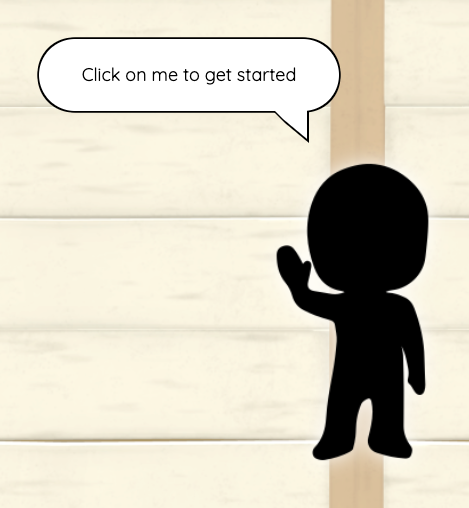
The first time you go to the avatar page, you will see 3 blank avatar versions.
Just click on the first blank avatar to show the edit and selfie buttons.
Next time
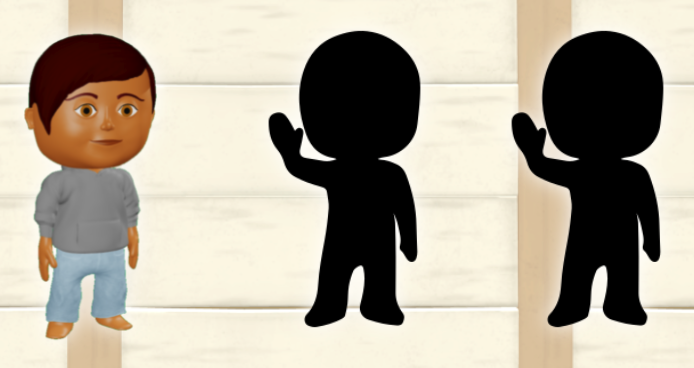
Just click on the avatar version you want to edit.
Clicking on another blank avatar version will allow you to create a new avatar version.
Clicking on one you have previously saved will allow you to edit it.
| Edit button |
Click this button to edit your avatar - you can change your skin, eye and hair colour and your outfit. |
|---|---|
| "Selfie" button |
This does not take a picture of you, just your avatar! You CAN NOT add your own picture to use on the site. Click here to update your selfie using the selected avatar This will open the StudyLadder World photo booth where you can rotate and pose your avatar,experiment with lighting and change the camera angle, zoom and position. Please note: Your current selfie is used throughout the site and will be visible to your teacher and linked parent account. |
| Close |
Close the avatar editor - be sure to save your changes first or they will be lost when you close the avatar editor. This button will appear greyed out if there are unsaved changes - but you can still close the editor, you will just receive a warning. |
|||||||
|---|---|---|---|---|---|---|---|---|
| Smartphone UI |
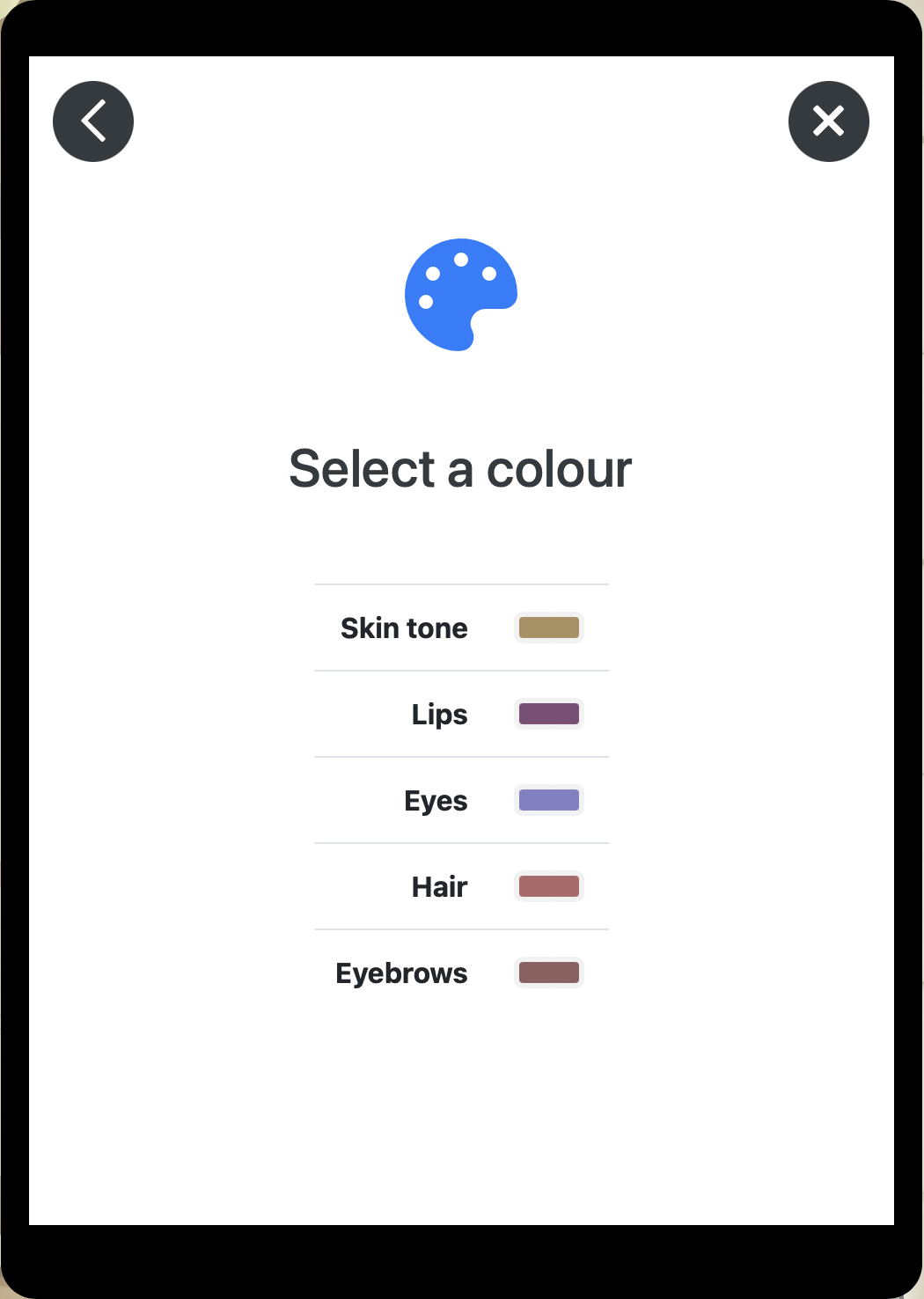
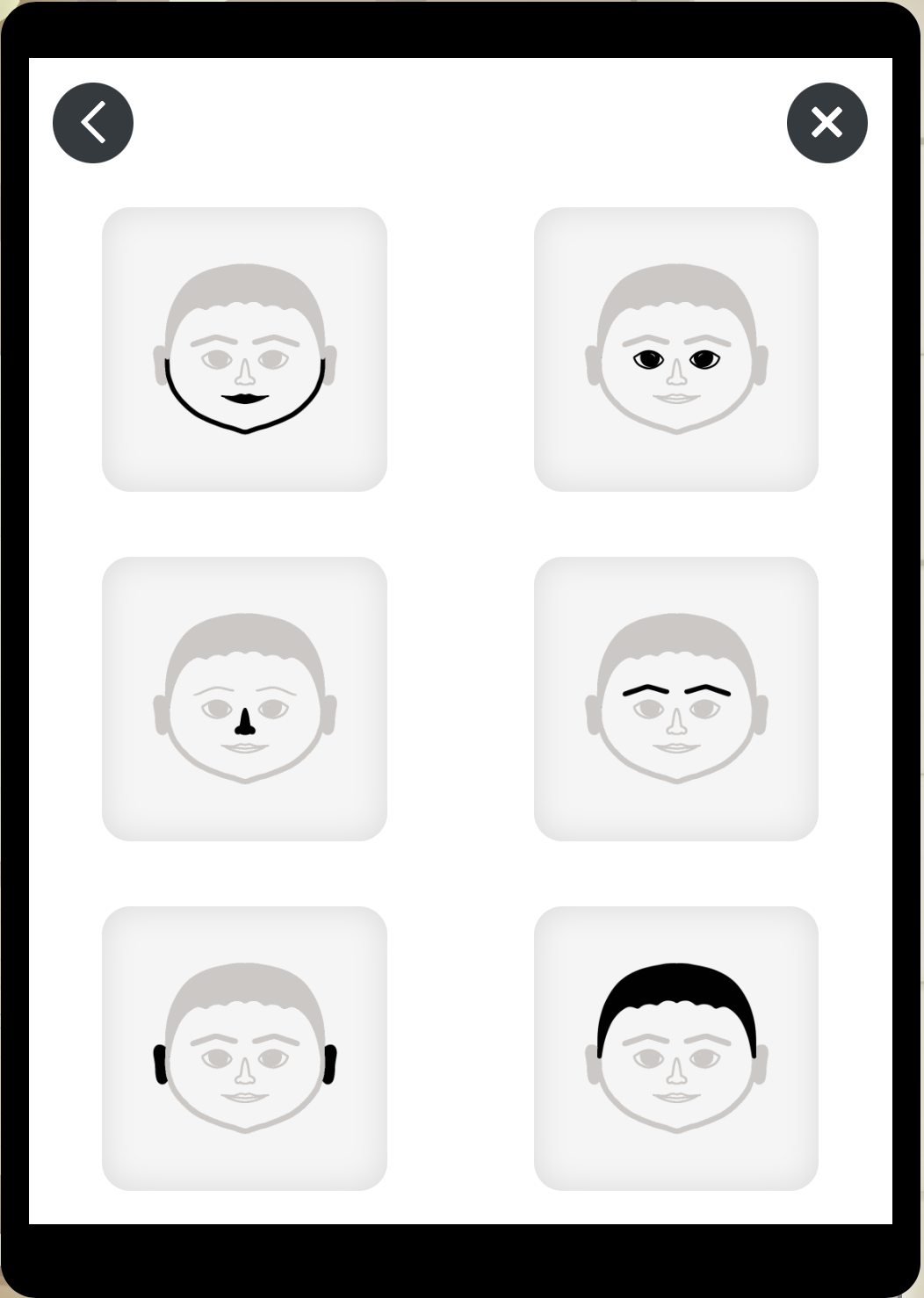
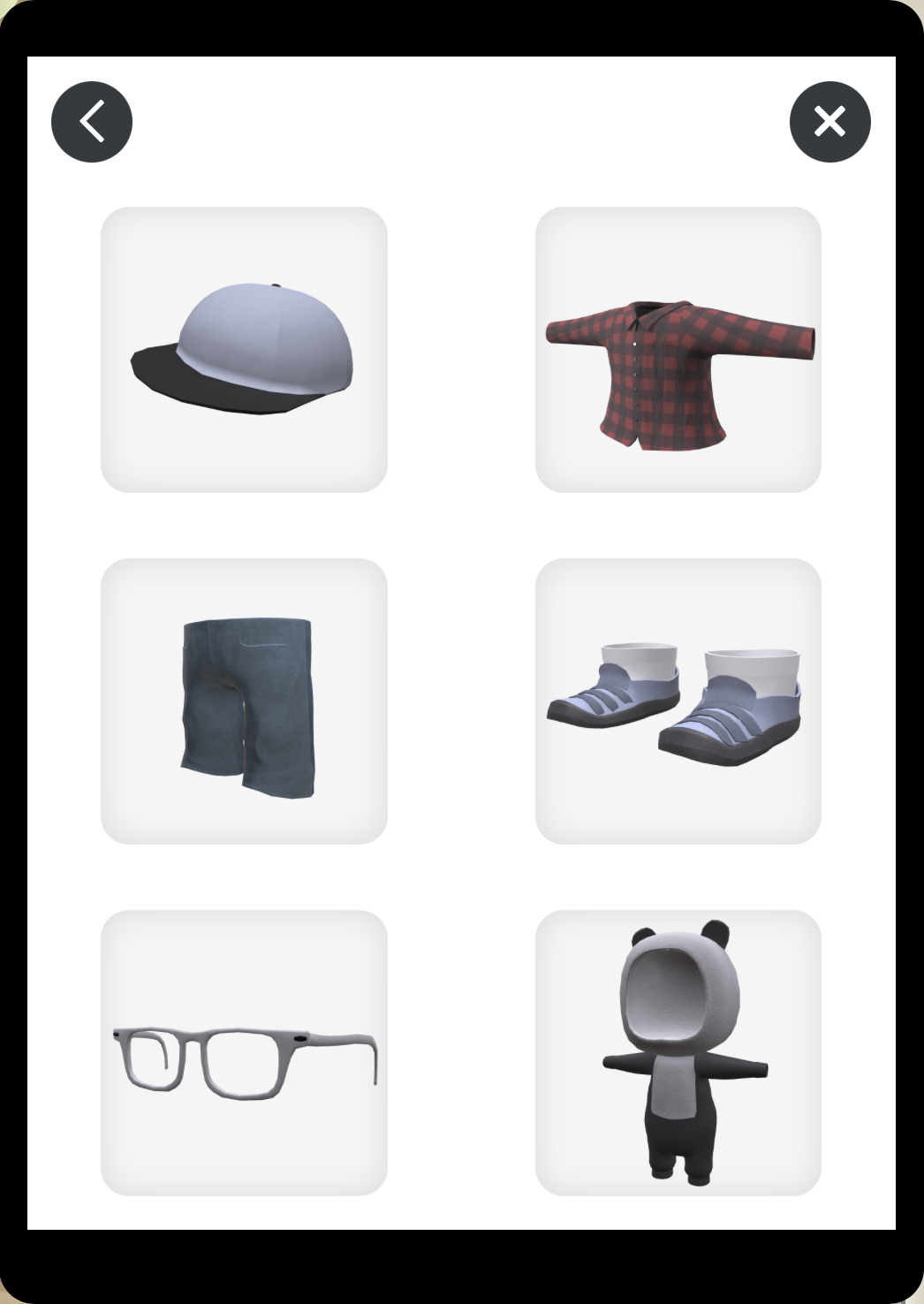
Smartphone style user interface for changing the appearance of your avatar.
Please Note: Costumes contain their own pants and shoes. If you want to change pants or skirts, you will need to select a different top from the "Tops" options to replace the costume. This applies to all in one dresses as well. |
|||||||
| Undo |
Undo the changes you have made since your last save one at a time. |
|||||||
| Redo |
Redo the changes you have made since your last save one at a time. |
|||||||
| Settings |
Adjust the volume for music and effects. Change the performance parameters.
There is a performance indicator in the top left corner of the screen (next to the help button).
Consider changing the performance setting if the performance indicator is red or yellow. You may need to try a different device or a different browser if your perfrormance is still low in High Performance mode. On some Mac devices, Chrome browser is a lot faster than Safari. |
|||||||
| Save |
Save all of the changes you have made since your last save or since opening the avatar. This button will be greyed out if everything is saved. This indicates it is safe to close the editor. |
| Close |
Close the photo booth |
|
|---|---|---|
| Pose |
Change your avatar's pose Additional poses and props will become available as you progress through StudyLadder World and gain achievments. |
|
| Rotate |
Use the circular slider to rotate your avatar inside the photo-booth. Just click or drag on the ring slider icon. |
|
| Lighting |
The photo booth is lit by 5 spotlights. One each at the left, right, top and bottom of the booth, as well as one in the centre. You can vary the strength of each light by clicking or dragging in its ring icon, or click in the centre to change the colour of the light. There is also a slider to control the amount of background light. |
|
| Reset lighting |
Reset all lights to their default strength and colour. |
|
 |
Selfie preview |
Click here to see a preview of your current selfie |
Tips
This does not take a picture of you, just your avatar! You CAN NOT add your own picture to use on the site.
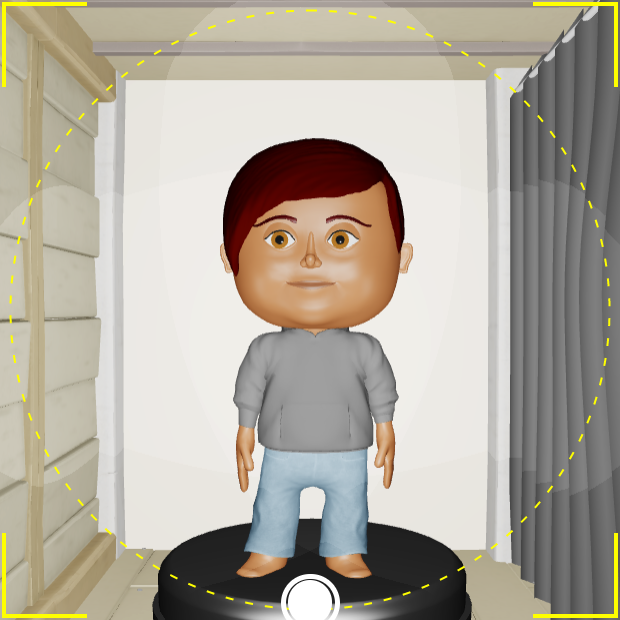
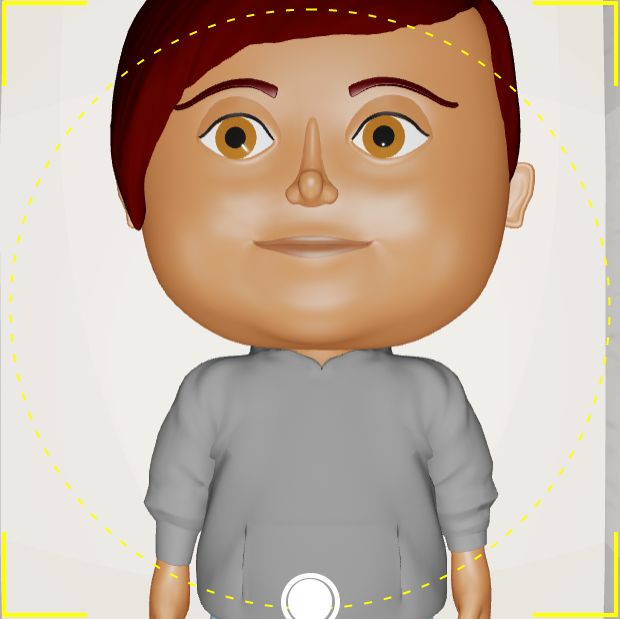
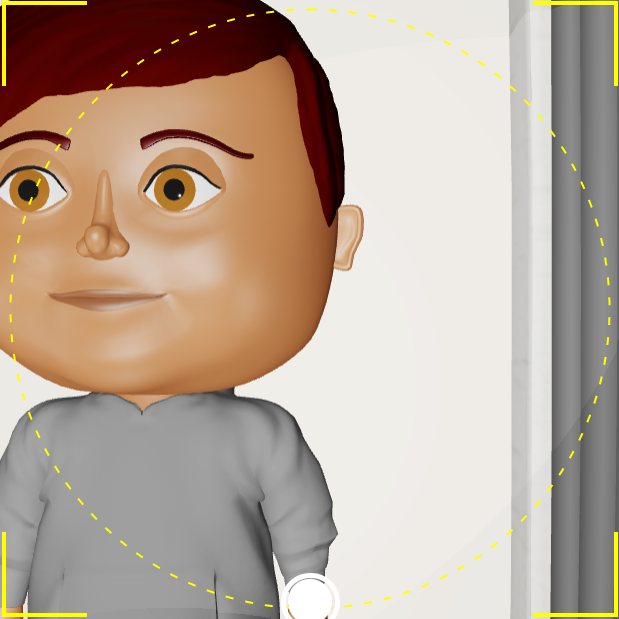
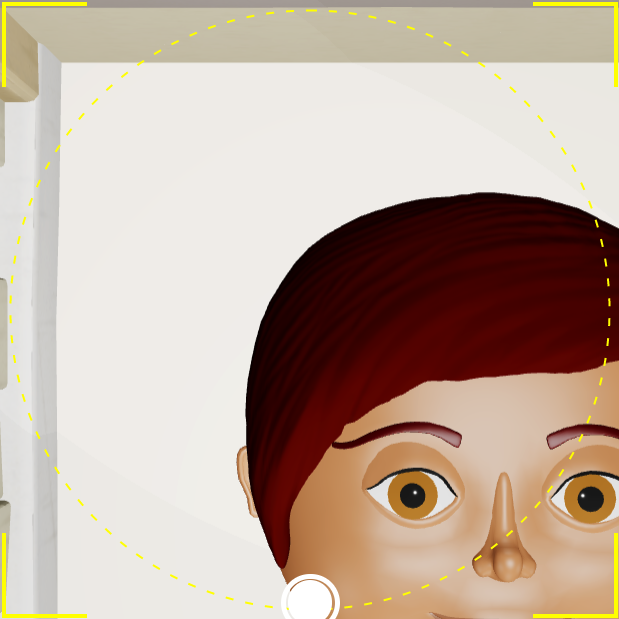
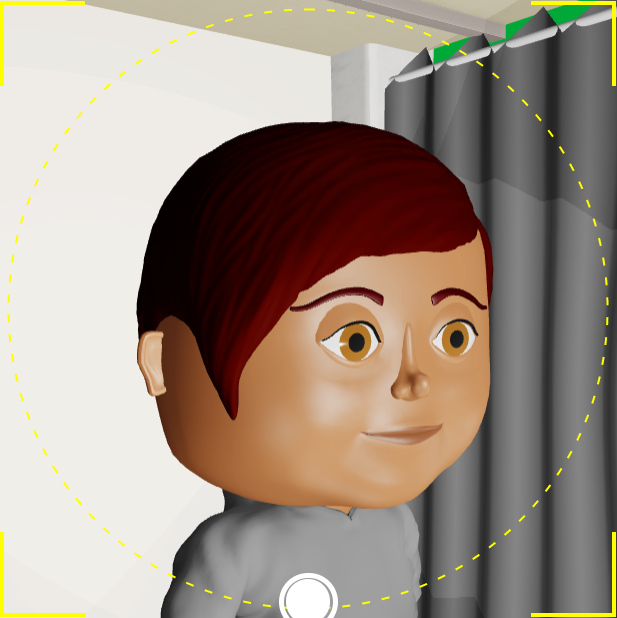
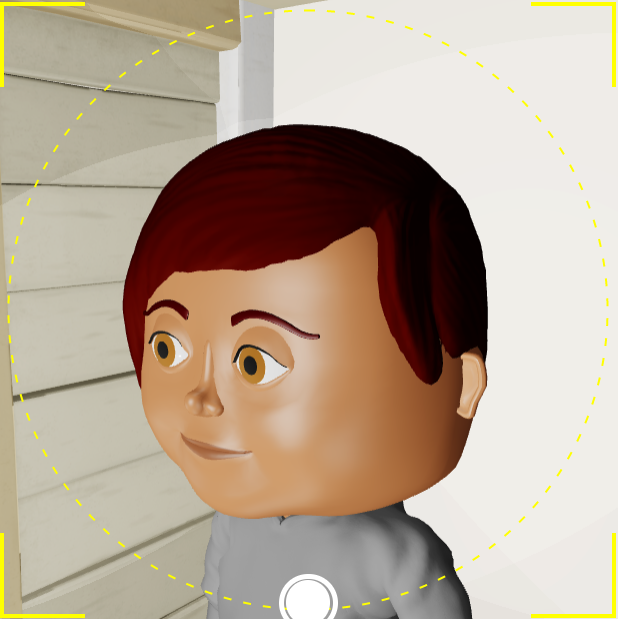
- The dashed yellow circle indicates the area that is going to be viewable when your selfie is shown elsewhere in the site. Move and zoom the camera using the controls explained on the "Moving and Zooming View" tab of this help window.
- The background is always removed from your selfie before saving it, so don't worry about what is behind you in the shot.
- You can create some great creative effects using rotation and lighting, was well as poses. Move and zoom the camera to make it even better!
- You can only have one seflie at a time.
- The old selfie is not replaced until the new one is saved. You can experiment taking different shots but don't save them until you are happy.
- Close the photo booth without saving to leave the current selfie as it is.
Zoom | |||||||
 |
 |
|
|||||
Move | |||||||
 |
 |
|
|||||
Tilt | |||||||
 |
 |
|
|||||